
FAQs
Purpose of the Original Display Screen for Zoom Digital Filter
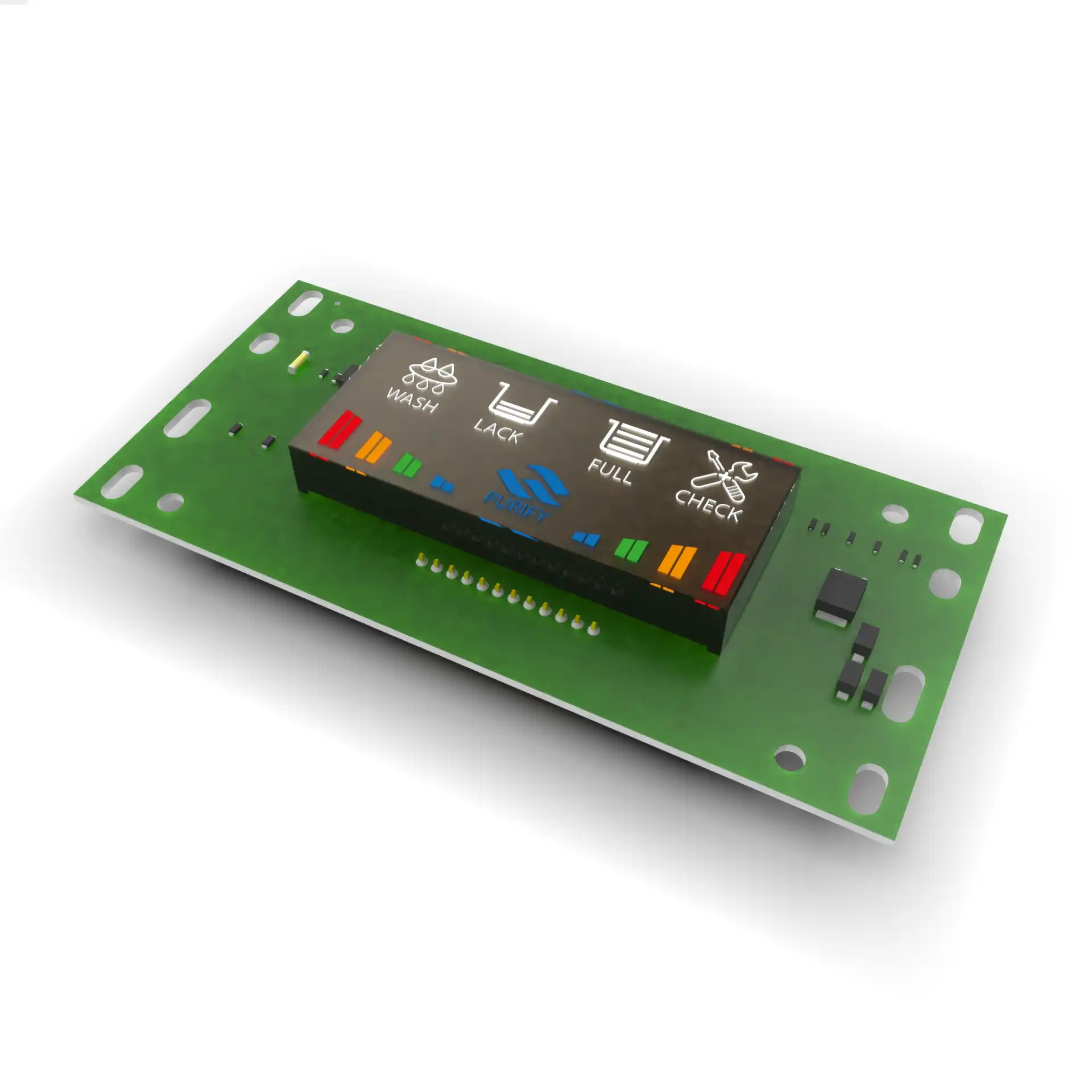
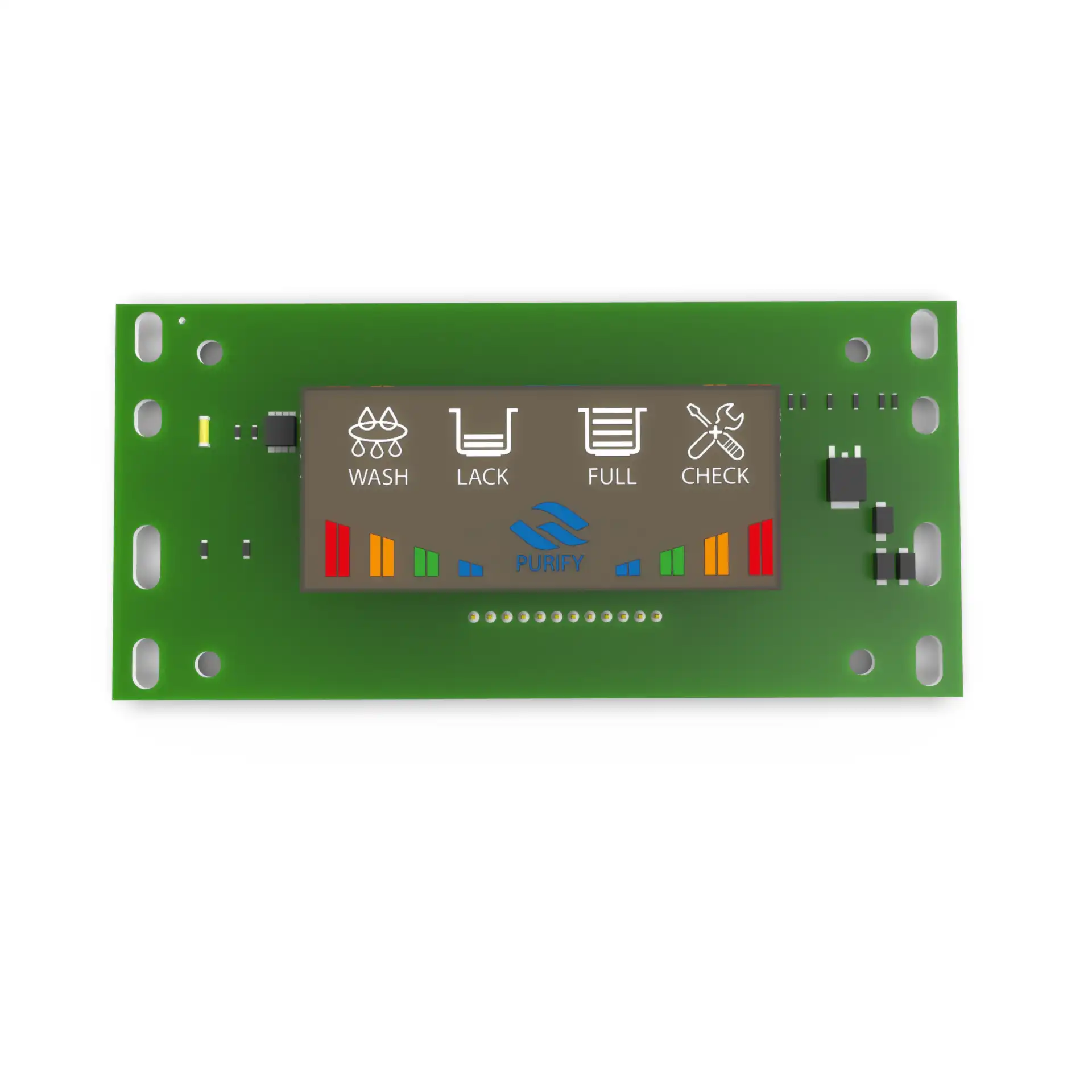
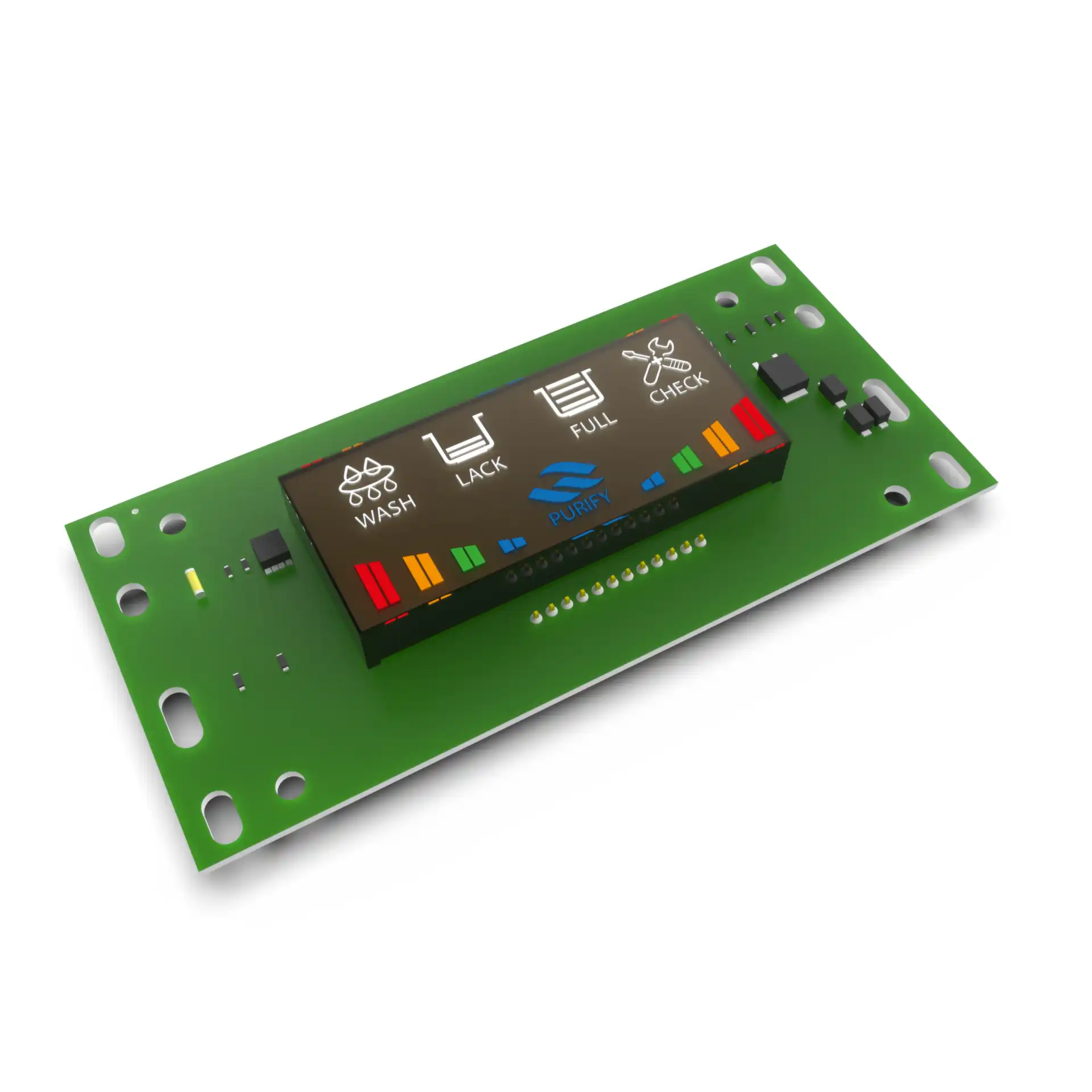
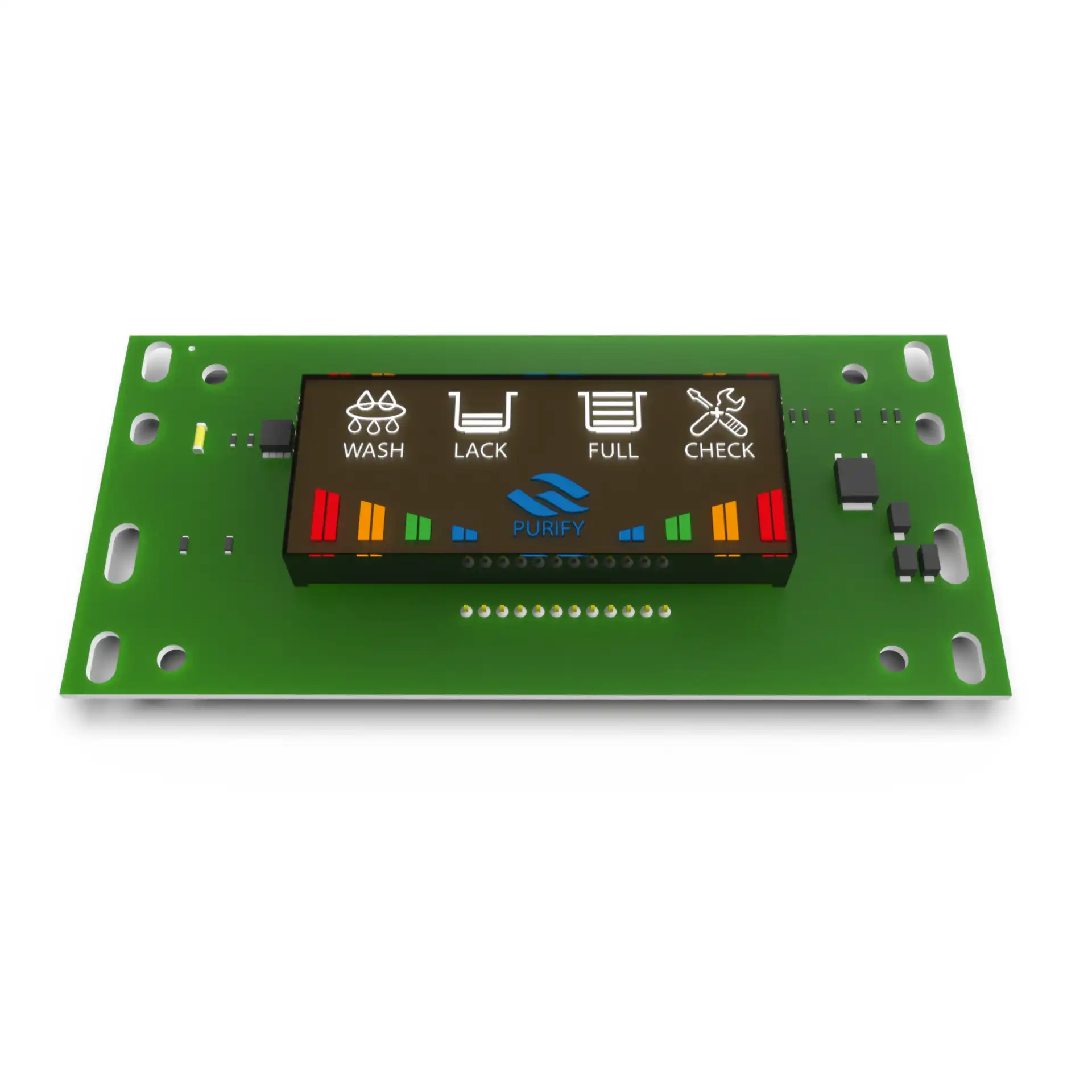
The original display screen on the Zoom Digital Filter serves several key functions to enhance the user experience and system monitoring.
🔹 Main Functions of the Display Screen
1️⃣ Real-Time Filter Status Monitoring
✔ Shows whether the filter is operating or on standby.
✔ Indicates if water flow is active or disrupted.
2️⃣ Water Source Detection
✔ Alerts the user if there is a water supply issue (e.g., low pressure or no feed water).
✔ Helps diagnose problems related to water input.
3️⃣ Automatic Cleaning (Flush) Notification
✔ Displays when the system is performing an automatic flush, ensuring the membrane stays clean and performs optimally.
✔ Helps users track the self-cleaning cycles of the filter.
4️⃣ Maintenance and Filter Replacement Alerts
✔ Provides reminders when filter stages need replacement, ensuring consistent water quality.
✔ Reduces the guesswork in filter maintenance.
5️⃣ Error Detection & Troubleshooting
✔ Displays error messages or warnings in case of system malfunctions.
✔ Helps users quickly identify and resolve any issues.
🚀 Why is the Display Screen Important?
✅ Makes it easy to monitor the filter’s performance.
✅ Prevents system failures by detecting issues early.
✅ Ensures water quality by keeping track of maintenance needs.
✅ Reduces water waste through proper flushing cycles.
How the Display Screen Improves the Performance of the Zoom Digital Filter
The display screen on the Zoom Digital Filter enhances performance by providing real-time monitoring, early issue detection, and automated maintenance alerts. This ensures optimal operation, water quality, and filter longevity.
🔹 Key Ways the Display Improves Performance
1️⃣ Real-Time System Monitoring
✔ The screen shows if the filter is actively working or on standby.
✔ Displays the status of water flow, ensuring the system is functioning properly.
🔹 Impact: Helps users quickly detect any operational issues that might affect water quality.
2️⃣ Water Source Detection & Alerts
✔ The screen notifies the user if there’s a problem with water supply (e.g., low pressure or no incoming water).
🔹 Impact: Prevents dry operation, which can damage the RO membrane and pump.
3️⃣ Automatic Flushing Cycle Monitoring
✔ Indicates when the system is performing a self-cleaning (flush) cycle.
✔ Ensures the RO membrane stays clean and operates efficiently.
🔹 Impact: Prevents clogging and extends the lifespan of the RO membrane.
4️⃣ Filter Replacement Reminders
✔ Provides timely alerts when it’s time to change specific filter cartridges.
✔ Prevents users from forgetting maintenance, which can reduce filtration efficiency.
🔹 Impact: Maintains consistent water quality by ensuring filters are replaced on time.
5️⃣ Error Detection & Troubleshooting Assistance
✔ Displays error messages if there’s a problem (e.g., sensor issues, pump failure, or leaks).
✔ Helps users identify and fix problems quickly, avoiding long-term damage.
🔹 Impact: Reduces downtime and ensures continuous filtration without interruptions.
🚀 Overall Benefits of the Display Screen
✅ Prevents system failures by detecting problems early.
✅ Extends the lifespan of key components like the RO membrane and pump.
✅ Ensures high water quality by keeping filters in top condition.
✅ Reduces water and energy waste by optimizing performance.
Is the Original Display Screen for Zoom Digital Filter Easy to Install?
Yes! The original display screen for the Zoom Digital Filter is designed for easy installation and user-friendly setup. Most users can install it without professional help by following simple steps.
🔹 Why Is It Easy to Install?
✔ Pre-configured for the System – No complex programming is needed.
✔ Plug-and-Play Connection – Uses a pre-attached cable and connector for quick attachment.
✔ Simple Mounting – Can be fixed on the filter body or a convenient location.
✔ User Manual Provided – Includes step-by-step installation guidance.
🔧 Basic Installation Steps:
1️⃣ Turn Off the System – Unplug the filter to ensure safe installation.
2️⃣ Connect the Display Cable – Plug the display cable into the designated port on the control panel.
3️⃣ Secure the Display – Mount it using the included bracket or screws (if applicable).
4️⃣ Power On & Check – Turn the system back on and ensure the display is functioning properly.
💡 Tip: If the screen doesn’t turn on, check the cable connection and ensure the system is properly powered.
🚀 Final Thoughts
✅ Designed for easy setup with minimal effort.
✅ No technical skills required – Just plug it in and secure it.
✅ Quick troubleshooting available if any issue arises.

العربية


Reviews
There are no reviews yet.